2026-06-12
Samsung TV Remote Workflows for Remote Teams: Screen Sharing Without the Living-Room Bottleneck
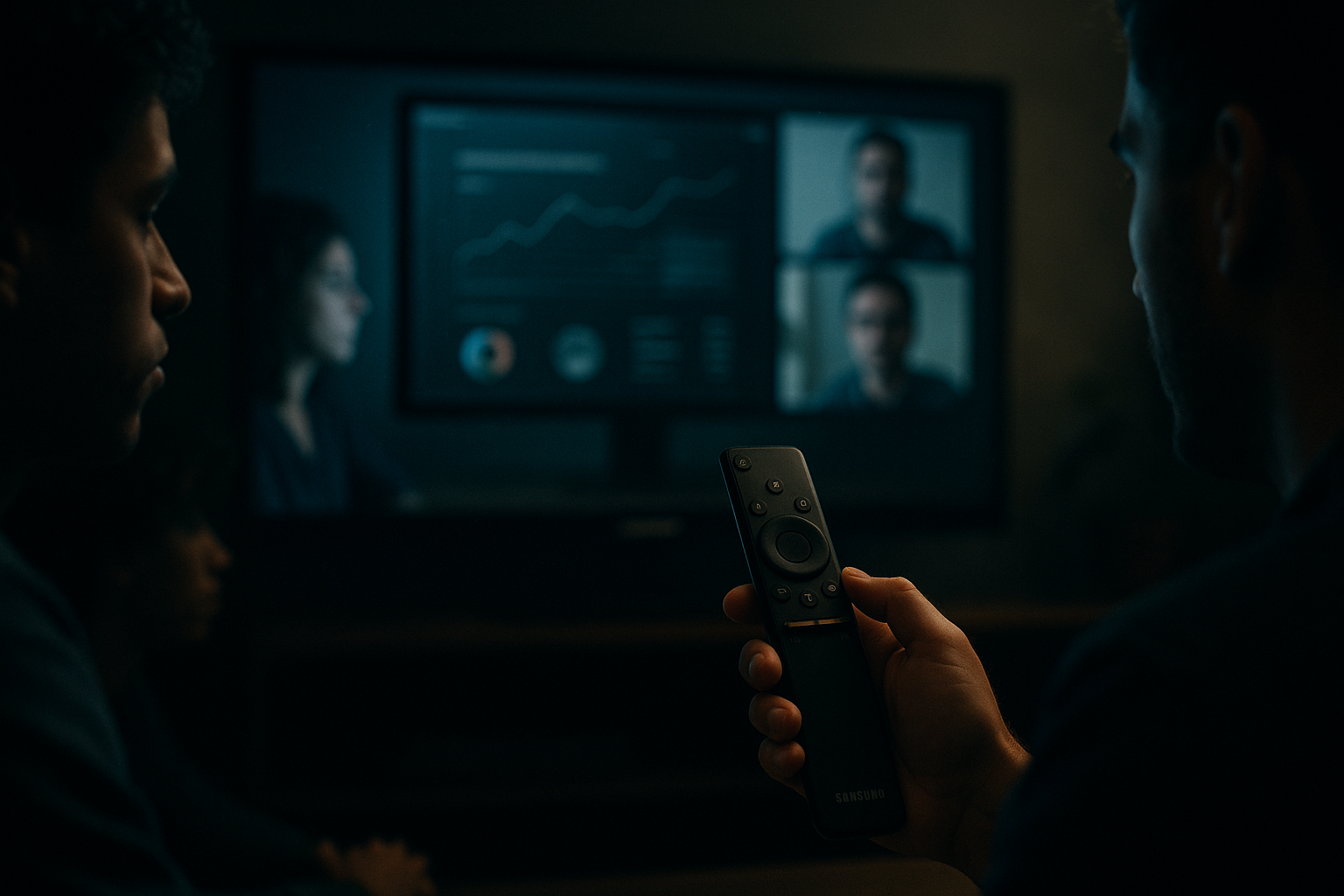
A samsung tv remote sounds like a small problem until a remote design review stalls because the office TV is on the wrong input, the person near the screen is not the presenter, and the one teammate who paired the SmartThings app is out sick.
Teams think the problem is finding a better remote. The real problem is building a control workflow around a shared display that several people need to use, trust, and recover when something goes wrong.
That changes the conversation. The practical question is not only whether the Samsung TV remote has batteries or whether the app can connect. It is who controls the source device, who sees the same state, who can recover the session, and how the team avoids turning every meeting into ad hoc tech support.
For remote teams, product designers, software developers, and startup operators, the TV is just one endpoint in a collaboration system. The UI is visible. The state, ownership, permissions, and fallback paths are the real work.
Table of contents
- Why a samsung tv remote becomes a workflow problem
- Map the Samsung TV remote control paths
- Choose the right control path for the job
- Build the room and remote team workflow
- Design for permissions security and privacy
- What breaks when teams implement it badly
- What works in product design reviews
- What works for developers and support
- Operational checklist for Samsung TV remote setups
- Where PairUX fits in the Samsung TV remote workflow
Why a samsung tv remote becomes a workflow problem
The remote is only one control surface
A Samsung TV can usually be controlled through several paths: the physical remote, buttons on the TV, a mobile app, HDMI-CEC from a connected device, casting controls, or the application running on a laptop. In a home, that is mostly convenience. In a remote team workflow, it becomes a coordination problem.
The mistake teams make is treating the TV as the center of the meeting. The TV is not the center. The source of truth is usually a laptop, browser tab, prototype, development environment, customer issue, or document. The TV only displays that source.
If control lives on the TV remote, remote teammates are dependent on the person in the room. If control lives on the presenter laptop, the display behaves more predictably. If control is shared through a remote collaboration layer, the team can move faster without asking someone to stand up, find an input, or click through a menu.
Practical rule: Use the Samsung TV remote for display setup. Use collaborative remote control for the work itself.
That distinction sounds small, but it prevents a lot of meeting drag. The physical remote should handle power, input, volume, and emergency recovery. It should not be the main interface for navigating design files, QA scripts, product demos, or developer tools.
What changes in 2026
Remote and hybrid teams are now more comfortable with asynchronous work, shared docs, screen recordings, and browser-based tools. But conference rooms and living-room setups are still messy. A Samsung TV may be used as a large display for a design critique one hour, a customer demo the next, and a developer pairing session after that.
The practical question is how to make the setup reusable. If every team reinvents the process, you get fragile rituals: one person knows the Wi-Fi password, another knows the HDMI adapter, a third knows why casting fails from guest networks, and nobody wrote it down.
A useful way to think about it is endpoint architecture. The Samsung TV is an endpoint. The presenter laptop is an endpoint. Remote collaborators are endpoints. The workflow needs identity, control, visibility, recovery, and support boundaries across those endpoints.
That is why this topic belongs in a remote collaboration blog, not just a consumer electronics guide. The remote matters, but the operating model matters more.
Map the Samsung TV remote control paths
Infrared Bluetooth and app control
Most Samsung TV remote setups start with the physical remote. Depending on the model, the remote may use infrared, Bluetooth, or a combination. Infrared requires line of sight. Bluetooth pairing can fail, drift, or be tied to a specific remote. Mobile app control can work well, but it introduces phone ownership, account access, network discovery, and support questions.
For a team, the control path should be documented like any other dependency. Do not make people guess. Put the model, input naming, app pairing method, backup remote location, and network requirements in one small runbook. If you use PairUX or any other remote collaboration tool in the same environment, your setup notes should also reference security, installation, and system requirements from the PairUX docs so the collaboration layer is not treated as a mystery dependency.
A simple room record can look like this:
room: design-review-west
display: samsung-tv-wall-1
primary-input: hdmi-1
fallback-input: airplay
physical-remote-location: drawer-left
mobile-app-owner: operations
recovery-contact: workplace-ops
collaboration-tool: pairux
This is not bureaucracy. It is an operational shortcut. When the setup fails five minutes before a review, the team needs a recovery path, not a debate.
Casting screen sharing and HDMI CEC
Casting and HDMI-CEC blur the line between TV control and source control. A laptop can wake the TV, switch inputs, or stream content. A browser tab can become the meeting surface. A mobile device can cast a prototype. These paths are useful, but they also create hidden state.
What breaks in practice is that the room does not remember what happened. A previous user may have left the TV on a streaming app. The laptop may detect the display but not route audio. Casting may work on the office network and fail on the guest network. HDMI-CEC may switch inputs unexpectedly when another device wakes.
You do not fix that by buying a more expensive remote. You fix it by reducing ambiguity. Label the preferred input. Disable unused casting paths if they create confusion. Decide whether the team should use direct HDMI, wireless display, or browser-based screen sharing for each meeting type.
Practical rule: The more control paths a shared display has, the more explicit your recovery path must be.
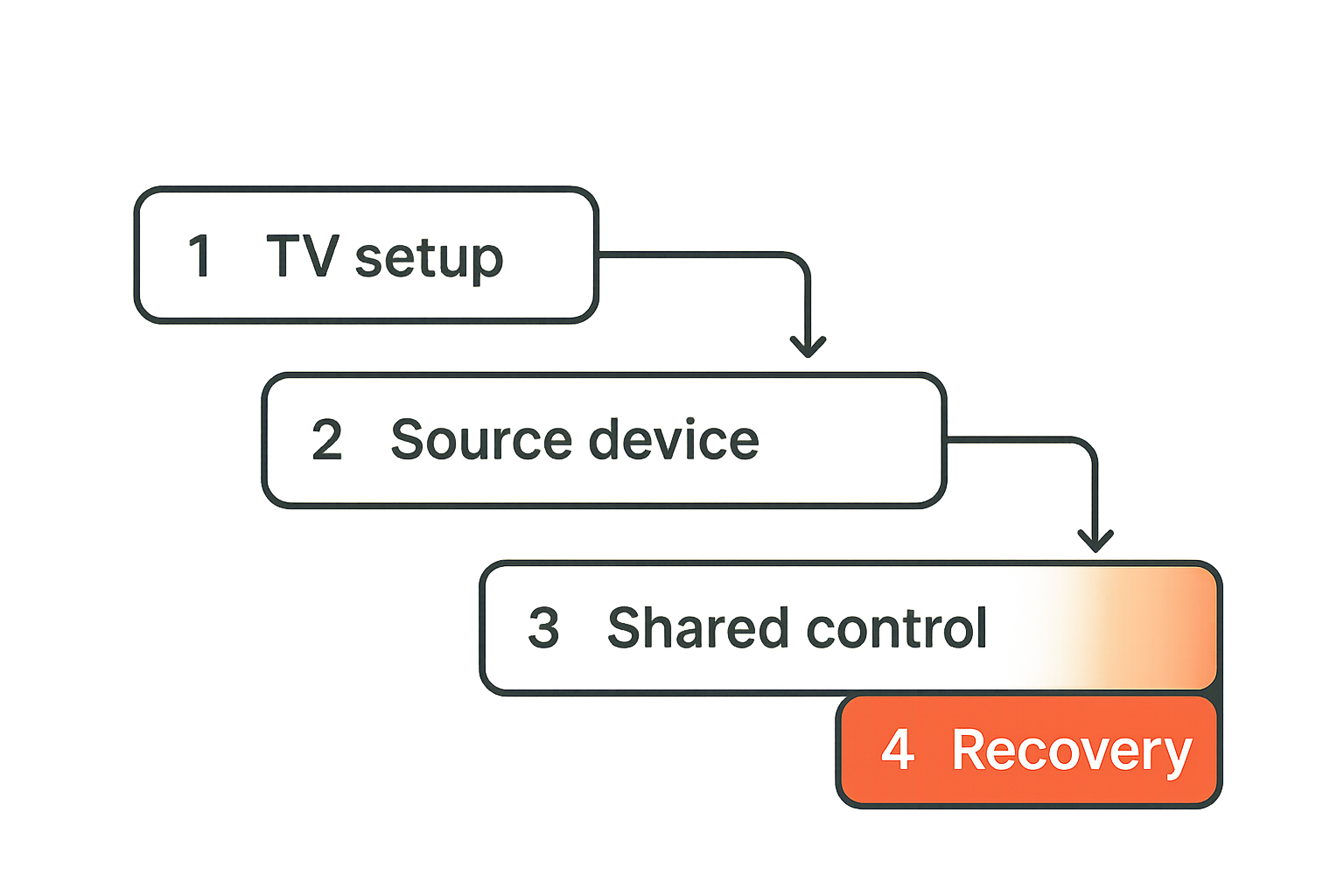
The Samsung TV remote still matters, but it should sit inside a clear control map: TV setup first, source device second, collaboration layer third, recovery documented.
Choose the right control path for the job
When the physical remote still wins
The physical Samsung TV remote is still the best tool for several jobs. It is fast, local, and independent of the presenter laptop. It should be the first choice for power, input selection, volume, picture mode, and basic troubleshooting. It is also the right fallback when the network is down or when a paired app cannot discover the TV.
The mistake teams make is extending that local-control model into every collaboration task. A person in the room becomes the hands for everyone else. Remote participants ask them to open a menu, switch tabs, zoom a design, scroll a page, or click a prototype state. That slows the room and makes remote teammates second-class participants.
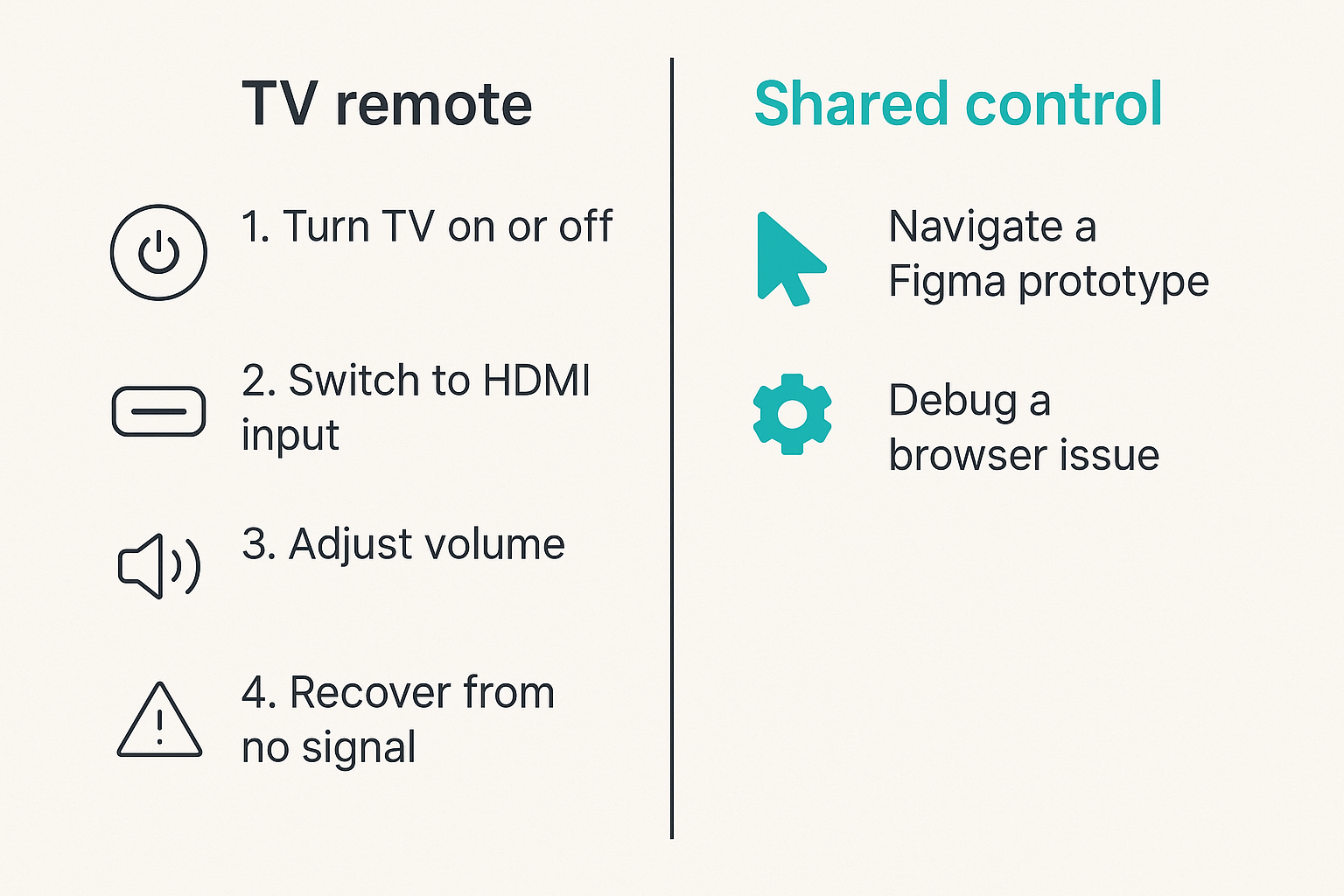
Here is a practical comparison:
| Task | Best control path | Why |
|---|---|---|
| Turn TV on or off | Physical Samsung TV remote | Local and reliable |
| Switch to HDMI input | Physical remote or HDMI-CEC | Display setup task |
| Navigate a Figma prototype | Shared screen remote control | Work happens on the source device |
| Debug a browser issue | Shared screen remote control | Developer needs keyboard and context |
| Adjust volume | Physical remote | Room-specific audio task |
| Recover from no signal | Physical remote plus runbook | Local display state is unknown |
That changes the conversation. Instead of asking who has the remote, ask where the work state lives.
When shared screen control wins
Shared screen control wins when the useful action is inside the laptop, browser, design tool, IDE, terminal, or customer support workflow. Remote teammates should not have to narrate every click through the person in the room. They should be able to request control, act, and hand control back.
This is especially important for distributed product teams. A designer may need to drive the prototype while a PM watches the room reaction. A developer may need to inspect a network call. A founder may need to walk through a deck but let a customer success lead take over during support detail.
Practical rule: If the action changes the source of truth, do not route it through the TV remote.
Shared control also improves accountability. You can define who is driving, who is observing, and when control changes. That is much cleaner than a room full of people pointing at a TV while one person tries to interpret instructions.
For adjacent reading, remote SaaS teams face the same ownership problem when they design roles before adding headcount. Related reading from our network: software engineer jobs in 2026 frames the same issue as workflow design before hiring.
Build the room and remote team workflow
A practical implementation sequence
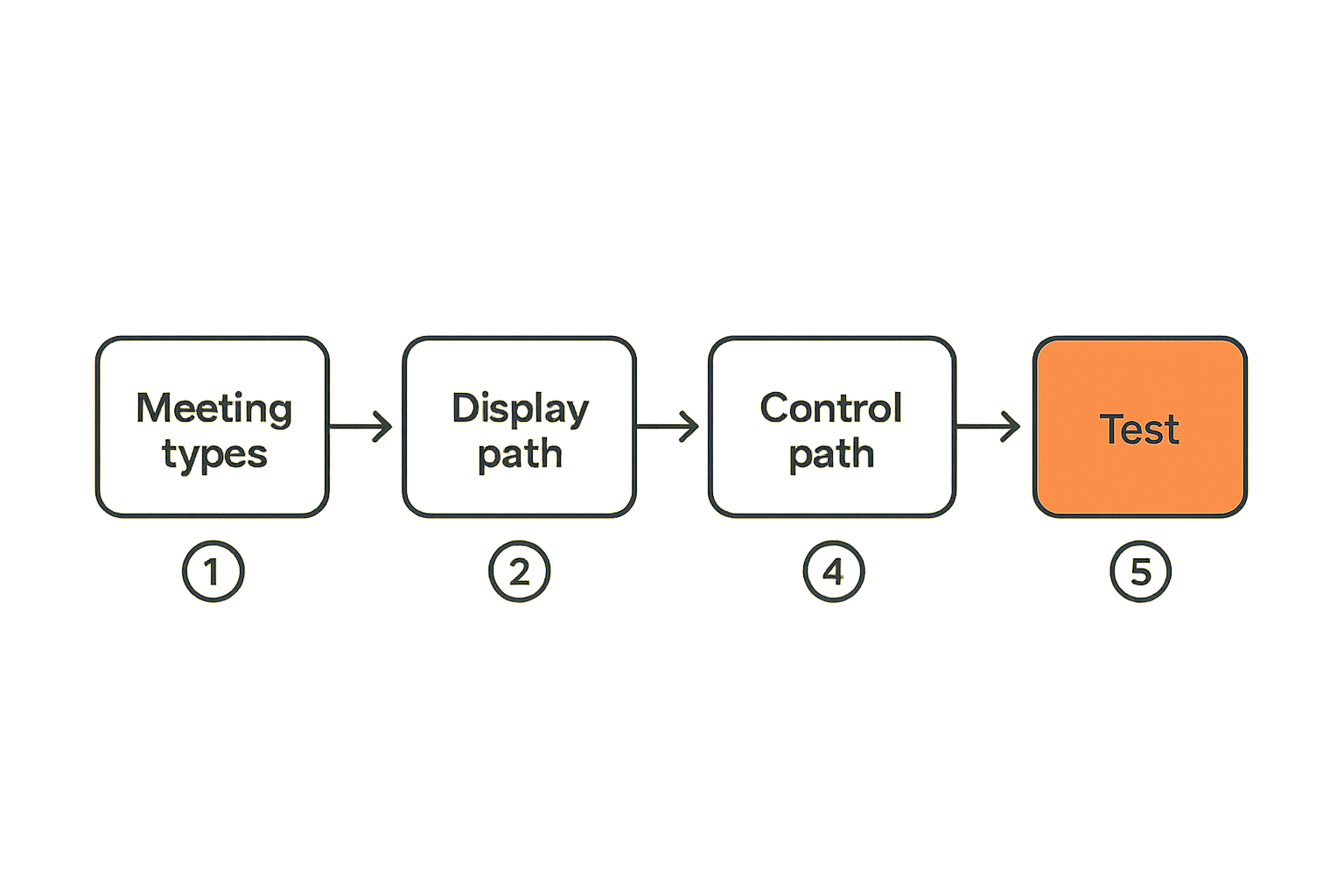
Do not start with devices. Start with meeting types. The workflow for a product critique is different from a support escalation, and both are different from a board update. Once you know the meeting type, you can decide how the Samsung TV remote, screen sharing, and remote control should interact.
A practical rollout sequence looks like this:
- List the recurring sessions that use a Samsung TV: design reviews, sprint demos, customer calls, QA triage, all-hands, pairing sessions.
- Define the source of truth for each session: laptop, browser app, design file, staging site, terminal, slide deck, or video call.
- Decide the display path: HDMI, AirPlay, casting, browser sharing, or meeting-room computer.
- Decide the control path: physical remote for TV setup, presenter control for simple demos, collaborative remote control for interactive work.
- Write a one-page runbook: preferred input, backup input, remote location, pairing method, Wi-Fi requirements, and recovery owner.
- Test the workflow with one remote participant who is not in the office.
- Remove unused paths that create confusion.
- Review the setup after two weeks and keep what people actually use.
This sequence is deliberately boring. Boring is good. Meeting-room workflows should not be clever. They should be recoverable.
If you are building a broader collaboration stack around this, the same pattern applies to docs, chat, video, and remote control. We covered that larger operating model in our guide to a practical cloud collaboration stack for remote teams.
The handoff rules that prevent stalls
Control handoff is where most teams get sloppy. The person sharing their screen starts as the driver. Then someone remote asks to try something. Then someone in the room grabs the mouse. Then the TV goes to sleep. Nobody is sure who is driving.
Set explicit rules:
- One driver at a time.
- The driver says what they are changing before they change it.
- Remote control requests are accepted or declined, not ignored.
- The person near the TV owns physical recovery only.
- The meeting owner owns the decision log.
- The setup is reset at the end of the session.
These rules remove social friction. Remote participants do not need to interrupt awkwardly. People in the room do not become accidental operators. The Samsung TV remote remains available, but it is not the collaboration protocol.
The practical question is whether a new teammate can run the meeting without knowing the folklore. If the answer is no, the workflow is not finished.
Design for permissions security and privacy
Local device trust is not enough
A TV in a conference room feels local, so teams often treat it as trusted by default. That is risky. A shared display can expose unreleased designs, production dashboards, customer data, private chat, staging credentials, calendar notifications, and browser autofill prompts. The Samsung TV remote is not a security boundary.
Your controls should sit where the sensitive work happens: the laptop, the app, the browser profile, the screen-sharing session, and the remote-control permissions. A TV can mirror whatever the source device shows. If the source device is messy, the TV will faithfully make the mess larger.
What works:
- Use a dedicated browser profile for demos.
- Turn off notifications before sharing.
- Keep production admin tools out of casual reviews.
- Require explicit approval before remote control is granted.
- End the session and reset the display path after the meeting.
What fails:
- Leaving private tabs open and trusting people not to notice.
- Letting anyone on the network cast to the TV.
- Sharing a personal phone as the app remote for a team room.
- Treating app pairing as permanent authorization.
Related reading from our network: security teams use similar thinking when they turn a term into an operating model. The SOC-focused guide to a national security agency definition is a useful adjacent example of mapping signals, ownership, and response boundaries.
Remote control needs explicit ownership
Remote control is powerful because it compresses feedback loops. It is risky for the same reason. If several people can move the cursor, type into fields, or operate a live environment, the workflow needs consent and ownership.
The mistake teams make is treating remote control as an always-on convenience. In practice, it should be session-scoped and purpose-scoped. A designer taking control to adjust a prototype is different from a developer taking control to inspect a production incident.
A useful permission model is simple:
| Permission | Default | Why |
|---|---|---|
| View shared screen | Meeting participants | Needed for collaboration |
| Request control | Trusted collaborators | Prevents random interruption |
| Grant control | Current driver | Preserves ownership |
| Operate sensitive systems | Named owner only | Reduces accidental changes |
| End session | Host or driver | Ensures cleanup |
Practical rule: Remote control should be granted by the person accountable for the source device, not by whoever is closest to the TV.
This is where a collaboration workflow is more important than a device feature list. The Samsung TV remote can change inputs. It cannot decide who should touch customer data.
What breaks when teams implement it badly
Failure mode one the TV becomes a mystery endpoint
The first failure mode is the mystery endpoint. Nobody knows what the TV is connected to, which input is correct, whether it is on the corporate network, or why it woke up with a different source. The meeting starts with five minutes of debugging, and remote teammates sit silently while office participants solve a local problem.
This usually happens when the TV is allowed to accumulate state. Old paired devices remain connected. Input names are generic. Casting is enabled but undocumented. The physical remote moves between rooms. The mobile app is installed on one employee phone. The HDMI cable works only with one adapter.
The fix is not complicated. Name the inputs. Remove old pairings. Put the remote in one place. Document the fallback. Test from the perspective of a new employee and a remote employee. If either person cannot start the session, the setup is too dependent on tribal knowledge.
A room that cannot be operated by a non-expert is not a room. It is a dependency disguised as furniture.
Failure mode two everyone controls but nobody owns
The second failure mode is uncontrolled collaboration. Everyone can cast, share, request control, or grab the mouse, but nobody owns the meeting state. The TV shows something, the video call shows something else, and the decision log is empty.
This is common in energetic startup teams. People optimize for speed, then accidentally create ambiguity. During a design review, one person comments on the TV view, another comments on the shared video-call view, and a third is looking at a stale prototype link. By the time the team notices, the conversation has split into three realities.
What works is boring ownership:
- One meeting owner.
- One source of truth.
- One active driver.
- One display path.
- One recovery owner.
The Samsung TV remote can support that workflow, but it cannot enforce it. The operating rule has to come from the team.
What works in product design reviews
Keep the TV as the display not the coordinator
Product design reviews are where the TV temptation is strongest. A large screen is useful. It makes spacing, contrast, motion, and layout issues visible. It also gives the room a shared focal point. But the TV should not become the coordinator of the review.
The coordinator should be the artifact and the person driving it. If the artifact is a Figma file, then the Figma file is the source of truth. If the artifact is a staging build, then the browser session is the source of truth. The Samsung TV remote only helps the room see the artifact.
A practical review setup:
- Presenter shares the source device.
- TV mirrors or displays the shared source.
- Remote participants join the same screen-sharing session.
- One designer drives the artifact.
- Review owner captures decisions in the doc.
- Physical remote is used only for input and volume.
This keeps remote teammates in the same workflow as the room. They are not watching a camera pointed at a TV. They are participating in the same shared screen state.
Use remote control for the source of truth
When a designer says, let me try that variant, they should not have to describe a sequence of tiny clicks to someone in the room. They should take control of the shared source, make the change, and hand control back. The same applies to a PM testing a user flow or an engineer checking whether a proposed interaction is feasible.
Remote control is not about replacing the Samsung TV remote. It is about preventing the TV remote from becoming the bottleneck. The display can stay stable while the work moves between collaborators.
This is also better for documentation. If the source of truth is a shared artifact, comments, screenshots, and decisions can attach to that artifact. If the source of truth is a room conversation around a TV, decisions disappear unless someone manually reconstructs them.
The practical question after every review is simple: could a teammate who missed the meeting understand what changed and why? If the answer depends on hallway memory, the workflow failed.
What works for developers and support
Debug the laptop workflow before the TV workflow
Developer and support sessions expose a different problem. The team may use a Samsung TV as a large display for logs, staging builds, console output, or customer reproduction steps. That is useful, but debugging should happen on the source device first.
If the laptop workflow is unstable, the TV will amplify the instability. Browser permissions, VPN state, local environment variables, test accounts, and staging data all matter more than the display. The Samsung TV remote cannot fix a missing dependency or an expired session.
A better pattern is:
- Confirm the reproduction on the laptop.
- Share the laptop screen with the remote team.
- Put the same view on the TV for the room.
- Grant remote control only when someone needs to inspect or operate.
- Keep the terminal, browser, and notes organized.
- Reset the environment after the session.
Related reading from our network: freelancers and remote professionals evaluating job workflows run into a similar proof-and-process problem in AI-assisted remote work evaluation, even though the domain is different.
Keep logs screenshots and decisions attached
Developer sessions fail when the team treats the display as the record. A TV is not a record. It is a temporary surface. If an issue is reproduced, capture the steps. If an error appears, save the log. If a workaround is chosen, write down the owner and follow-up.
For support teams, this is even more important. Customers do not care that the room saw the problem on a big screen. They care whether the team can reproduce it, explain it, and resolve it.
What works:
- Keep an issue open during the session.
- Paste reproduction steps as they happen.
- Add screenshots from the source device, not photos of the TV.
- Capture environment details.
- Assign the next action before ending the call.
What fails:
- Saying someone should remember to file it later.
- Taking blurry photos of the TV.
- Letting remote participants watch without the ability to inspect.
- Ending the session with no owner.
The Samsung TV remote helps the room see. It does not help the team remember. Build the memory into the workflow.
Operational checklist for Samsung TV remote setups
Naming pairing and recovery
If you operate multiple rooms or shared spaces, standardize the setup. You do not need a complex ITSM process. You need enough consistency that a product designer, software developer, or startup operator can walk into a room and run the session without guessing.
Checklist:
- Name each Samsung TV clearly in the network and room documentation.
- Label physical inputs on the TV and wall plate.
- Keep the physical remote in a fixed location.
- Store spare batteries or a charging cable nearby.
- Document app pairing and who owns it.
- Remove stale paired devices quarterly.
- Define the default input for meetings.
- Disable confusing features you do not use.
- Write a two-minute recovery procedure.
A useful recovery procedure is short:
1. Power TV with physical remote.
2. Select HDMI 1.
3. Confirm laptop detects display.
4. If no signal, switch cable or adapter.
5. If still no signal, use browser screen share.
6. Report persistent failure to operations.
This is the difference between a shared tool and a shared annoyance.
Metrics that show whether the setup is working
You do not need fake precision, but you should watch practical signals. If the team complains every week, the setup is not working. If meetings start late because of display problems, the workflow needs attention. If remote teammates stop participating during room-based reviews, the control model is excluding them.
Track lightweight signals:
| Signal | Healthy pattern | Warning pattern |
|---|---|---|
| Time to start session | Under a few minutes | Repeated setup delays |
| Remote participation | Remote teammates drive when needed | Remote teammates only watch |
| Recovery success | Any teammate can recover | One expert is required |
| Decision capture | Notes attached to artifact | Decisions live in memory |
| Support load | Rare room issues | Frequent display debugging |
The goal is not to overmanage a TV. The goal is to see whether the shared display is helping the team or quietly taxing every meeting.
Practical rule: If the same Samsung TV remote issue appears twice, document the fix or remove the path that causes it.
Small operational habits compound. A clear room setup saves attention for the actual work.
Where PairUX fits in the Samsung TV remote workflow
PairUX as the collaboration layer
PairUX is not a replacement for the Samsung TV remote. It sits in a different part of the architecture. The remote controls the display. PairUX helps people work together on the source device through real-time screen sharing, remote control, and collaborative interaction.
That distinction is important. If the room TV is showing a laptop, PairUX can make that laptop session usable by remote participants. Instead of asking someone in the room to click, a remote teammate can request control and operate directly when appropriate. Instead of treating the TV view as the meeting state, the shared screen becomes the state everyone can use.
For teams comparing collaboration options, the PairUX features page is the practical place to evaluate screen sharing, remote control, multi-cursor collaboration, and cross-platform support against your workflow.
PairUX fits best when the work is interactive: design review, QA triage, pair debugging, product walkthroughs, onboarding, and support sessions. It is less important for passive presentations where one person talks through static slides and nobody else needs to operate.
When PairUX is the right fit
Use PairUX when the Samsung TV remote is becoming a symptom of a deeper collaboration problem. If remote participants cannot take action, if people in the room are acting as human cursors, or if meetings stall around who controls the source device, you need a better collaboration layer.
A good product fit looks like this:
- The TV remains a shared display for the room.
- The source device remains the source of truth.
- Remote teammates can see the same state.
- Control can move intentionally between collaborators.
- The meeting owner can keep decisions attached to the work.
- Recovery does not depend on one person knowing the setup.
This is not hype. It is just cleaner architecture. Keep TV operations local and simple. Move collaborative control to the place where the work actually happens.
If your team is already standardizing remote work tools, PairUX can become one part of that stack rather than another disconnected app. The practical question is whether it reduces handoff friction and makes remote participation real, not whether it has the longest feature list.
Try pairux.com
If your samsung tv remote workflow is really a remote collaboration workflow, PairUX can help. pairux.com gives remote teams fast, practical screen sharing, remote control, and online collaboration built for people who need to work together, not just watch.