2026-07-17
Vizio Remote Control Thinking for Remote Teams: Design Shared Control That Does Not Break

A Vizio remote control looks simple because the hard decisions are hidden. One person presses a button, the TV changes state, and everyone in the room understands who is in control.
Remote teams do not get that for free. A designer asks a developer to take over the cursor. A founder wants to drive a customer demo. A support engineer needs temporary access to reproduce a bug. The screen sharing tool says remote control is enabled, but the team still has to answer the harder questions: who can act, when, on what, and how control gets taken back.
Teams think the problem is screen sharing quality. The real problem is collaborative control architecture.
That changes the conversation. The practical question is not whether your tool has a remote control button. The practical question is whether your workflow behaves more like a good Vizio remote control: predictable, limited, reversible, and obvious to everyone watching.
Table of contents
- Vizio remote control is a workflow model, not just a device
- The real remote control problem for teams
- What a Vizio remote control gets right operationally
- Map the analogy to remote screen sharing
- Build a remote control architecture for collaboration
- Implementation workflow for remote teams
- Common failure modes when remote control is implemented badly
- What works and what fails
- Security and trust boundaries for shared control
- Use the Vizio remote control model with PairUX
Vizio remote control is a workflow model, not just a device
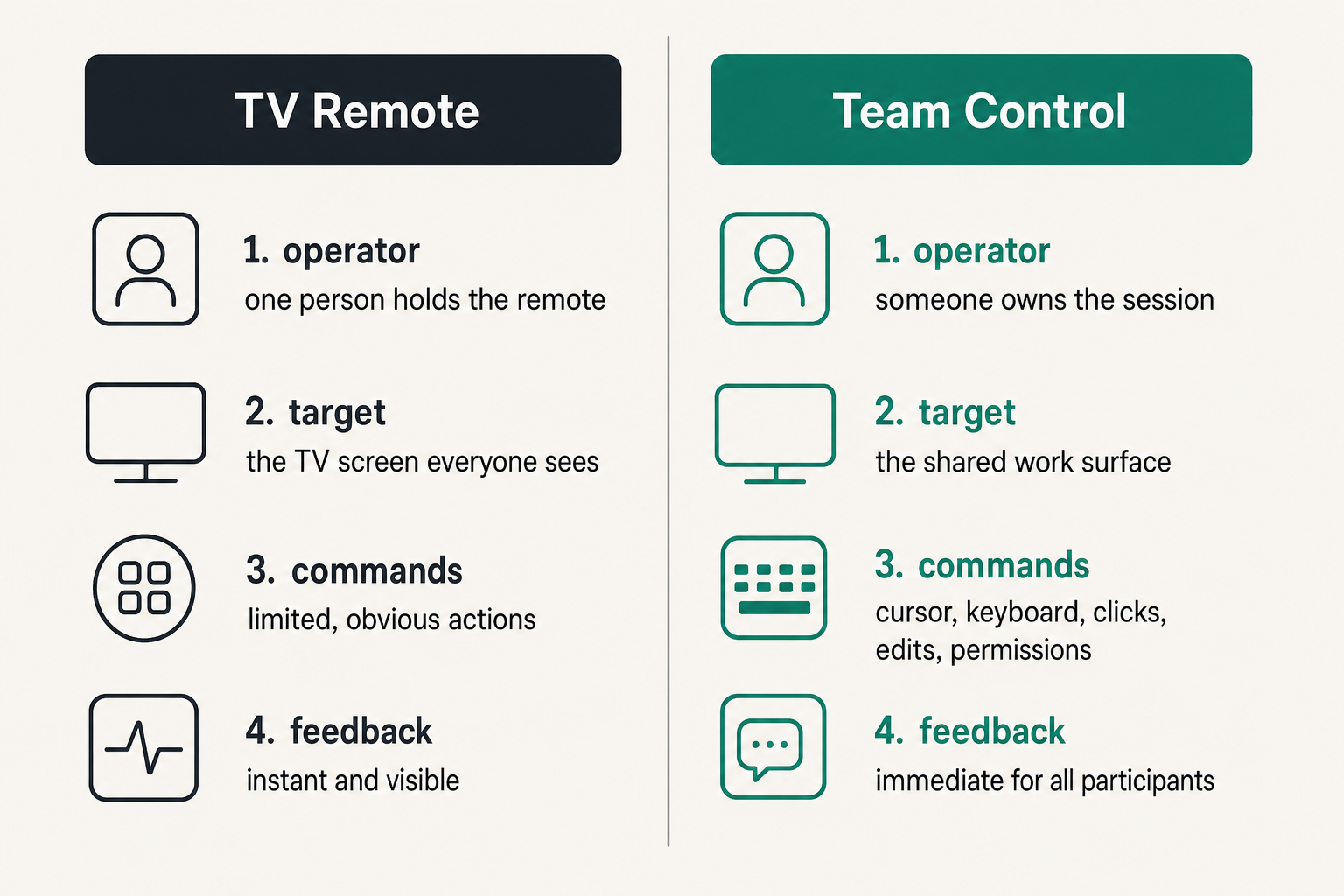
A useful way to think about a Vizio remote control is as a small authority system. It has a defined operator, a visible target, limited commands, and fast feedback. Nobody needs a policy document to know what happens when someone presses volume up.
Remote teams need the same qualities. The mistake teams make is treating remote control as a feature toggle instead of a coordination layer. Once another person can move the cursor, type into a terminal, edit a design file, or click through production admin screens, the workflow has crossed from observation into action.
The remote is a shared authority surface
A TV remote is not powerful because it has many buttons. It is powerful because it concentrates control into one object. That object changes the shared environment for everyone watching.
In a remote work session, the shared authority surface is the combination of screen, cursor, keyboard, microphone, chat, and permissions. If the team does not define who owns that surface, it becomes noisy. People talk over each other, click at the same time, and lose track of whether they are debugging, reviewing, teaching, or deciding.
Practical rule: Treat remote control as shared authority, not convenience. If an action can change the work product, it needs an owner.
Why this matters for online teams
In 2026, more teams are distributed by default. Product designers review flows with engineers across time zones. Software developers pair on production bugs. Startup operators jump between sales demos, onboarding calls, and internal reviews.
The UI is not the whole system. A remote control button may start the interaction, but state, trust, rollback, and meeting discipline determine whether the session works. The same lesson applies in adjacent workflow software: Related reading from our network: content management systems work best when teams build the workflow before choosing the tool.
What the analogy does not mean
This is not a guide to pairing a physical Vizio remote control with a television. It is not about IR sensors, batteries, smart TV menus, or replacement remotes.
The analogy is useful because it strips the problem down. A good remote control workflow has a clear operator, a clear target, a clear command set, and a clear way to stop. Remote teams need those same properties when sharing a screen with remote control.
The real remote control problem for teams
Teams think the problem is getting someone else to click on their screen. The real problem is making that click safe, understandable, and reversible.
When remote control is weakly designed, the pain shows up as small interruptions first. Someone asks, can you give me control again? Someone else says, wait, are you typing or am I? Then it becomes operational risk: a command runs in the wrong terminal, a customer sees the wrong tab, or a design review turns into uncontrolled editing.
Teams confuse access with control
Access means someone is allowed into the session. Control means someone can act inside the session. Those are different layers.
A viewer may need to watch. A collaborator may need to point. A controller may need to type. A host may need to revoke everything instantly. If your tool treats all participants as roughly equivalent, the team has to improvise these distinctions verbally.
That works for low-stakes calls. It breaks in practice during customer demos, live incident response, onboarding, code review, and pair programming.
Control needs state, not vibes
Remote control should have visible state. At any moment, the team should know:
- Who is presenting the screen
- Who currently has input control
- Whether control is view-only, pointer-only, or keyboard-and-mouse
- How the host can revoke control
- Whether the session is being recorded or audited
Without state, the session relies on social guessing. That is the same as passing a Vizio remote around a room with the lights off and no one saying who has it.
The collaboration cost of unclear ownership
Unclear ownership slows teams down. Developers hesitate before typing. Designers narrate every move because they do not trust the control boundary. Operators avoid giving control at all, so calls become long instruction loops: click there, no, the other button, scroll down, now open the dropdown.
The cost is not just annoyance. It is lost flow. Remote work already removes body language and shared physical context. If your control model adds ambiguity, every session gets heavier.
What a Vizio remote control gets right operationally
The value of the Vizio remote control model is not nostalgia. It is operational clarity. The device is small, but the workflow is disciplined.
One active driver at a time
A physical remote generally has one operator at a time. Two people may argue about what to watch, but only one person is pressing the button in a given moment.
Remote sessions need the same default. Multi-cursor collaboration is useful for pointing, designing, and lightweight interaction. But keyboard and mouse authority should be deliberate. If two people can trigger destructive actions simultaneously, the system is inviting confusion.
Practical rule: Use multi-person presence for awareness, but use explicit active control for actions that edit, submit, delete, deploy, purchase, or configure.
Immediate feedback after every action
A remote button press produces quick feedback. The volume changes. The input switches. The menu opens. If nothing happens, the operator knows to try again or check the device.
Collaborative screen sharing needs fast feedback too. When control is requested, granted, paused, or revoked, the session should show it clearly. A small label, cursor identity, control banner, or host indicator can prevent a surprising amount of confusion.
A small set of understandable commands
Consumer remotes work because the commands are constrained. Power, input, volume, menu, arrows, select, back. Even smart TV remotes with app buttons still rely on a small mental model.
Remote control tools should avoid exposing every possible permission as an undifferentiated blob. Teams do not need fifty modes. They need a few reliable ones: view, point, request control, grant control, pause control, revoke control, end session.
Map the analogy to remote screen sharing
A Vizio remote control changes a shared screen. Collaborative remote control does the same, except the shared screen may include source code, customer records, product analytics, or production systems.
That makes role design more important. The practical question is: who is allowed to do what while everyone else watches?
Viewer, presenter, and controller are different roles
In many calls, people use presenter and controller interchangeably. That is a mistake.
- The viewer sees the shared screen.
- The presenter shares the screen.
- The controller sends input to the shared machine.
- The host owns the session and can revoke control.
- The observer may need presence without interaction.
Those roles can overlap, but they should not be assumed. A product manager may host the meeting, a designer may present a prototype, and an engineer may temporarily control the cursor to inspect a devtools issue.
If your team wants a more concrete feature map for these collaboration modes, the PairUX features overview is a useful reference for screen sharing, remote control, and multi-cursor work.
The host remains accountable
The person sharing the machine remains accountable for what happens on that machine. Remote control does not transfer all responsibility to the guest.
This matters when a session touches sensitive systems. If someone else runs a migration, changes a billing setting, or opens a private customer record through your machine, the audit trail may still point to you. The host needs a fast revoke path and a clear habit of scoping the session before granting control.
Remote control should be scoped
Scoped control means the guest gets enough authority to complete the task, not unlimited access to the entire workday.
In practice, that can mean closing unrelated tabs, using a separate browser profile, opening only the relevant app, avoiding password managers during the session, and switching to pointer-only mode when keyboard input is not needed.
Practical rule: Before granting control, reduce the blast radius. Open the right window, close the wrong ones, and decide what the guest is allowed to change.
Build a remote control architecture for collaboration
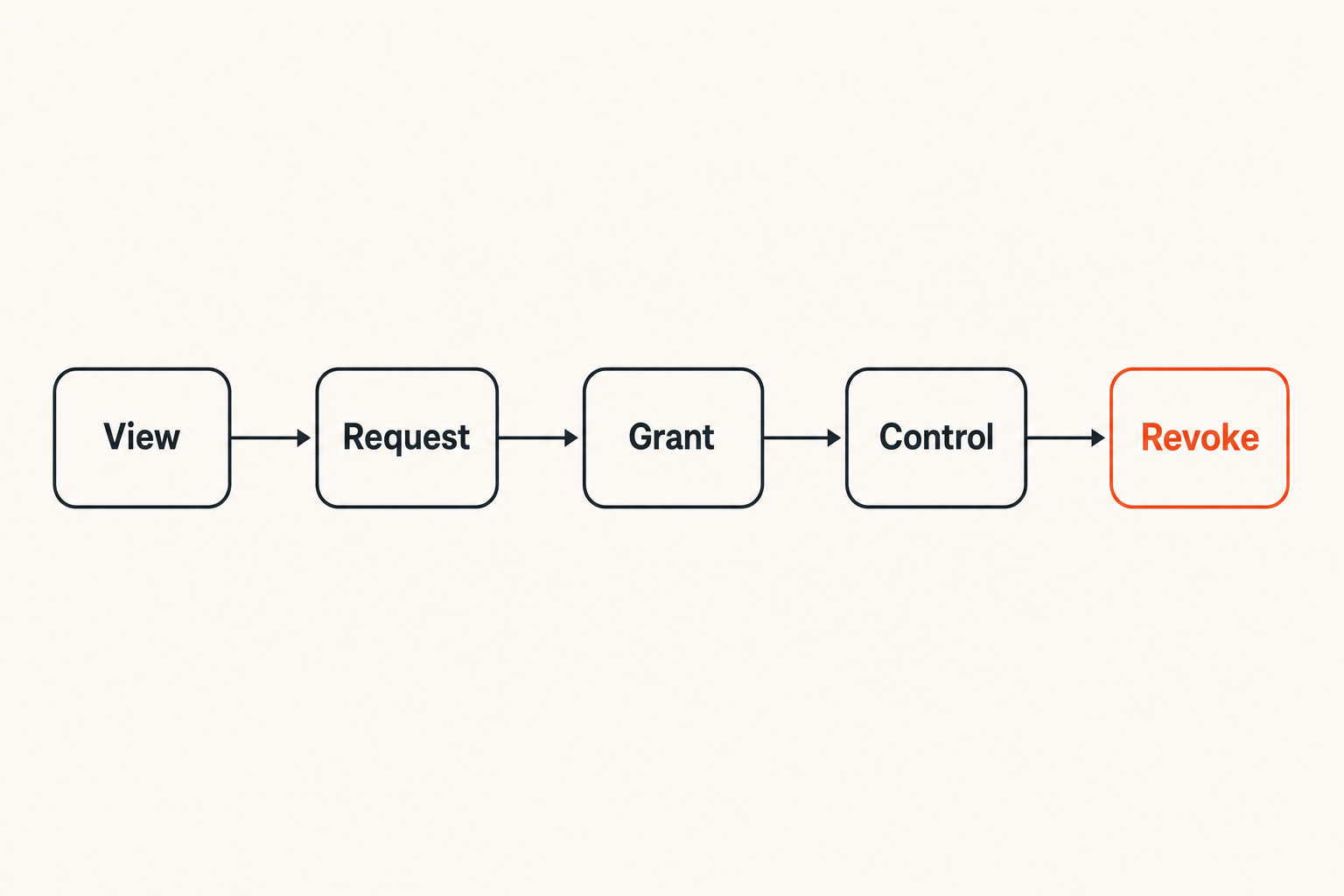
The mistake teams make is assuming meeting etiquette will solve a state-machine problem. Etiquette helps, but remote control still needs architecture.
A lightweight architecture is enough for most teams. You do not need bureaucracy. You need states, transitions, and recovery paths.
Define the control states
Start with a short list of states your team can understand:
- View-only: participants can watch but not interact.
- Pointing: participants can indicate areas without changing the host machine.
- Requested control: a participant has asked to take action.
- Active control: the host has granted input authority.
- Paused control: input is temporarily blocked without ending the session.
- Revoked control: authority has returned to the host.
- Ended session: sharing and control are both closed.
This gives teams language. Instead of saying it is acting weird, someone can say, I requested control but never entered active control.
Make transitions explicit
A good transition has a trigger and a visible result. Request control should notify the host. Grant control should identify the controller. Revoke control should immediately stop input. End session should close the control path, not merely hide the window.
A useful way to think about it is like a Vizio remote changing TV input. You do not want hidden transitions. If the screen moved from HDMI 1 to an app, everyone can see the mode changed.
Log the moments that matter
Most remote teams do not need heavy audit logging for every pointer movement. But some moments matter:
- Control requested
- Control granted
- Control revoked
- Session ended
- Error or disconnection during active control
For regulated teams, support teams, or companies handling sensitive customer data, those events may need stronger retention and review. For smaller teams, even lightweight session history can help debug trust issues and tool problems.
Implementation workflow for remote teams
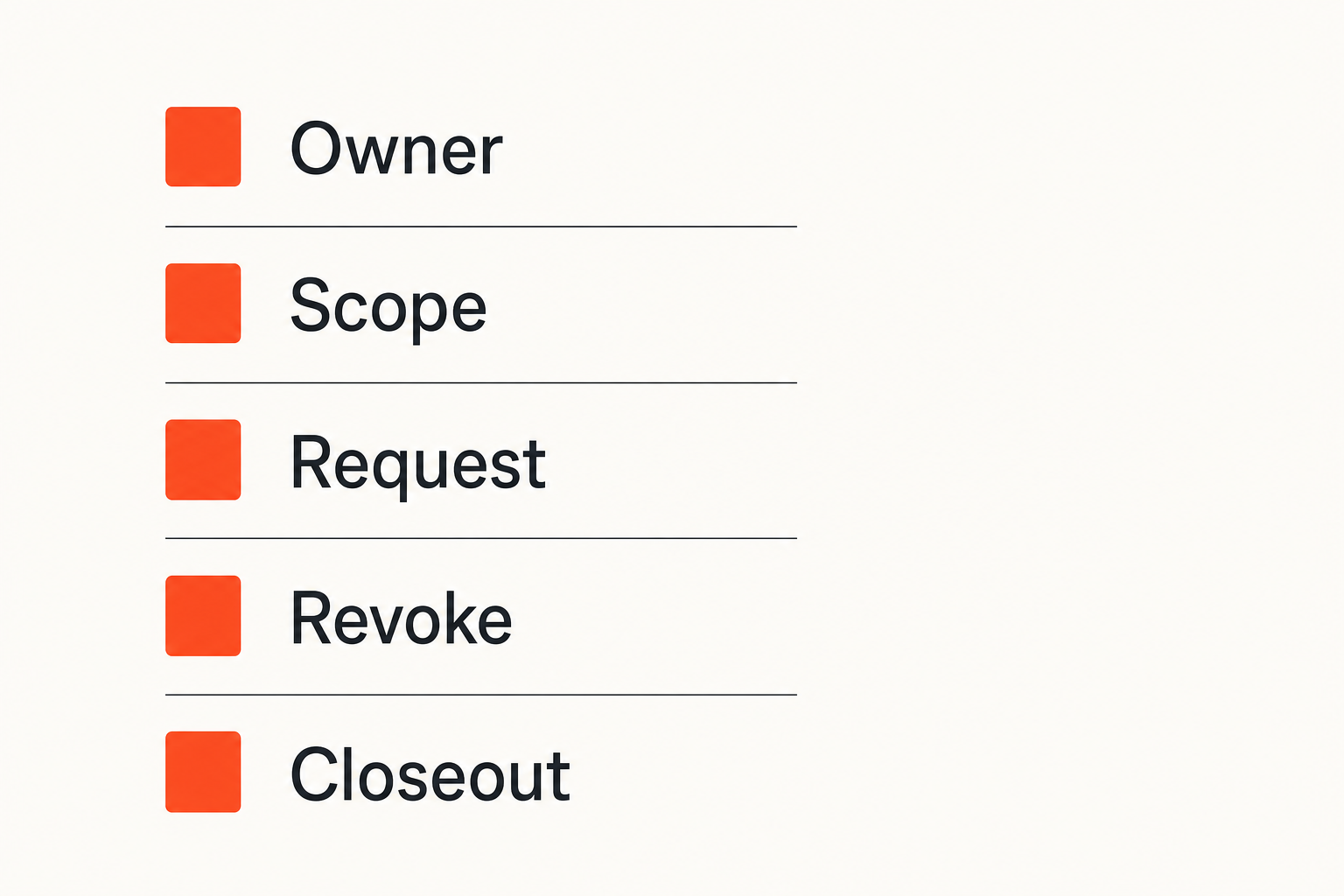
Remote control gets better when teams standardize the workflow before they need it. Do not wait for a live customer call or production incident to decide how control should work.
Here is a practical implementation sequence.
Step 1: choose the meeting pattern
Different meetings need different control defaults.
- Design review: presenter controls by default; others point or request temporary control.
- Pair programming: host and guest may alternate active control frequently.
- Support debugging: support host controls; customer or teammate may grant scoped access only when needed.
- Sales demo: presenter keeps control unless a technical specialist is explicitly driving.
- Incident response: one active operator controls commands; others observe, advise, and verify.
This is where startup operators should be skeptical of generic productivity advice. A tool that works for async task management may be a poor fit for live shared control. Related reading from our network: small businesses should choose productivity software around workflow ownership and rollout fit.
Step 2: assign ownership before sharing
Before the screen is shared, answer four questions:
- Who owns the session?
- Who is allowed to request control?
- What window or application is in scope?
- What action ends or revokes control?
This takes less than a minute. It prevents the most common remote control failures.
For example, a developer pairing session might start with: I will host. You can request control when we get to the failing test. Only the editor and terminal are in scope. I will revoke before we open credentials or production logs.
Step 3: end control cleanly
Ending matters. Many teams focus on granting control and forget revocation.
A clean ending includes:
- Verbal confirmation that control is ending
- Visible return of input authority to the host
- Closing sensitive apps or tabs
- Stopping screen sharing when the task is complete
- Capturing follow-up notes outside the remote session
If you need setup details, compatibility notes, or security guidance before standardizing this workflow, the PairUX documentation is the better place to verify the mechanics.
Common failure modes when remote control is implemented badly
What breaks in practice is rarely the headline feature. Screen sharing connects. Audio works. The cursor moves. The failure is usually in the control boundary.
The silent takeover
The silent takeover happens when a participant gains control without the group noticing. It may be accidental. It may be a stale permission from earlier in the call. Either way, the session becomes confusing.
Symptoms include unexpected cursor movement, typing in the wrong field, or the host pausing because they are unsure who is driving.
The fix is visible controller identity and explicit grant events. If everyone can see who controls input, the silent takeover becomes much harder.
The stuck controller
The stuck controller is the opposite failure. Someone had control, the task ended, but the session never returned cleanly to the host. The guest may still be able to type. The host may believe control has ended. That gap creates risk.
This often happens when tools treat disconnection, tab focus, and permission state as separate concerns. A browser tab closes, but control state lingers. A participant drops from the call, but the host UI does not clearly show whether authority was revoked.
The demo disaster
The demo disaster is familiar to anyone who has sold software remotely. A founder shares the wrong monitor. A teammate asks for control to fix something. A notification appears. Someone clicks into an internal dashboard. The customer watches the team debug the meeting instead of the product.
The fix is not more confidence. It is pre-demo architecture: separate browser profile, scoped window, defined backup driver, and a rule that control changes are announced before they happen.
Related reading from our network: product marketing managers face similar operator problems when turning shipping activity into clear customer-facing demand.
What works and what fails
The best remote control workflows are boring. They make the right thing obvious and the risky thing harder to do accidentally.
What works in production
Teams that handle remote control well usually do a few practical things:
- They name the active controller.
- They keep one person accountable for the session.
- They use request-and-grant instead of open control.
- They close irrelevant windows before sharing.
- They revoke control before opening sensitive systems.
- They have a fallback plan if control lags or disconnects.
These habits are not glamorous. They are the difference between a smooth pairing session and a call that burns twenty minutes on coordination.
What fails repeatedly
The patterns that fail are just as consistent:
- Anyone can take control at any time.
- The host cannot quickly revoke control.
- The tool gives no visible control state.
- The team relies on voice alone for permission.
- Sensitive apps remain open during broad screen sharing.
- The session continues after the actual task is done.
The failure is not that people are careless. The workflow invites carelessness.
A practical comparison
| Approach | What it looks like | What happens in practice |
|---|---|---|
| Open control | Anyone can drive once admitted | Fast at first, risky when stakes increase |
| Voice-only permission | People ask verbally with no visible state | Works until audio overlaps or someone misses the handoff |
| Host-gated control | Guest requests, host grants, host revokes | Slightly slower, much safer and clearer |
| Scoped control | Only the relevant app or task is exposed | Best fit for support, demos, reviews, and sensitive work |
| No remote control | Host follows verbal instructions | Safe but slow, especially for debugging and training |
Practical rule: If the work is low-stakes, optimize for speed. If the work can affect customers, code, money, or data, optimize for explicit control.
Security and trust boundaries for shared control
Remote control is security-sensitive even when the team is small. The person with control may not have account access directly, but they can act through the host machine.
That changes the trust model.
Remote control is privileged behavior
If a teammate can use your logged-in browser, terminal, design tool, admin panel, or cloud console, they are operating through your privileges. That is not the same as sending a link to a document.
Treat active control like temporary privilege delegation. It should be intentional, visible, and revocable.
This is especially important for founders and operators who live inside many systems at once: email, CRM, analytics, payment dashboards, issue trackers, code repositories, and customer support tools.
Consent has to be visible
Consent is not just a checkbox. It has to be visible at the moment control changes.
A good workflow makes the request obvious, the grant obvious, and the revocation obvious. If the host cannot tell whether they gave control, the consent model is weak. If the guest cannot tell whether they still have control, the collaboration model is weak.
This is one reason we have written about this topic before from a workflow angle. The earlier PairUX post on Vizio remote control lessons for remote teams covers the same core idea: collaborative control fails when handoffs, permissions, and expectations are implicit.
Least privilege still applies
Least privilege is often discussed in access management, but it applies to live collaboration too.
Do not grant keyboard control when pointer control is enough. Do not share the whole desktop when one window is enough. Do not keep control active after the task is done. Do not expose production tools during a design critique.
Small boundaries compound. They reduce the chance that a normal collaboration session becomes an avoidable incident.
Use the Vizio remote control model with PairUX
The point of the Vizio remote control analogy is not to make remote work cute. It is to make remote control operational.
A good team workflow should answer the same questions a physical remote answers without discussion: who is driving, what target is being changed, what commands are available, and how everyone knows the action worked.
Where PairUX fits
PairUX is built around collaborative screen sharing, remote control, and multi-cursor collaboration for teams that need to work together online without turning every session into a coordination tax.
That matters for product designers walking through prototypes, software developers pairing on code, and startup operators switching between support, demos, and internal execution. The goal is not to add more meeting theater. The goal is to make shared control clear enough that the team can focus on the work.
When this model is the right fit
The Vizio remote control model is useful when:
- More than one person needs to interact with the same screen.
- The session involves editing, debugging, configuring, or demonstrating.
- The host remains accountable for the machine being shared.
- The team needs fast handoffs without losing trust.
- The cost of accidental control is higher than the cost of a request step.
It is less useful for passive webinars, one-way presentations, or meetings where nobody should interact with the presenter machine. In those cases, view-only screen sharing is enough.
The closing lesson is simple: Vizio remote control thinking helps remote teams design shared control as a workflow, not a button. Once you do that, remote collaboration becomes easier to reason about, easier to secure, and much easier to run under pressure.
Try pairux.com
PairUX is for remote teams that need fast, practical collaborative screen sharing, remote control, and online teamwork without unclear handoffs. Try pairux.com.